
 Rule Markdown

Make yourself at home.
Rule Markdown support.
Find help with .md files, AI-generated plans, and the reader’s opening, copy, and privacy controls.
A .md file is a plain-text document with Markdown formatting. Rule Markdown presents its supported headings, lists, tables, and code as a formatted page.
Open a saved plan, README, or AGENTS.md file from an AI workflow just as you would any other supported Markdown document. Rule Markdown helps you read the file; it does not connect to an AI service or run the instructions inside it. Read the .md and AI file questions.
Open a document
Mac: right-click a Markdown file in Finder, choose Open With, then Rule Markdown. You can also choose Open Markdown in the app, press Command-O, or drag in a file. Dropping a folder grants access to it and opens its first supported Markdown file.
To make Rule Markdown your default Mac viewer, select a Markdown file in Finder and choose Get Info. Under Open with, select Rule Markdown, then click Change All. macOS controls file associations and which document icon appears.
iPhone and iPad: tap the folder button in Rule Markdown and choose your document from Files. If the sending app offers Open in Rule Markdown, use that action. A document in iCloud Drive or another provider may need to download first.
Preview with Quick Look
On Mac, install and open Rule Markdown, then enable Rule Markdown Preview in System Settings. On recent macOS versions, look under General > Login Items & Extensions > Quick Look. The location can vary; search System Settings for "Quick Look" if needed. Select a Markdown file in Finder and press Space.
If the preview is still plain text, close the preview, confirm the extension is enabled, and try again. Other Markdown preview extensions can affect which provider macOS selects. You can always use Open With > Rule Markdown to open the full reader.
On iPhone and iPad, an extension is included, but Files may continue using Apple's own Markdown preview. Use the folder button in Rule Markdown or an available Open in action when Files shows raw text.
Settle into the document
Open Reading Options to choose a theme, adjust text size, and turn code line numbers on or off. Twelve palettes are available, plus System appearance.
Use the outline to jump between headings. Use Find to search within the document. Show Source reveals the original Markdown; Show Preview returns to the formatted document. Both views are read only.
Copy a document or selection
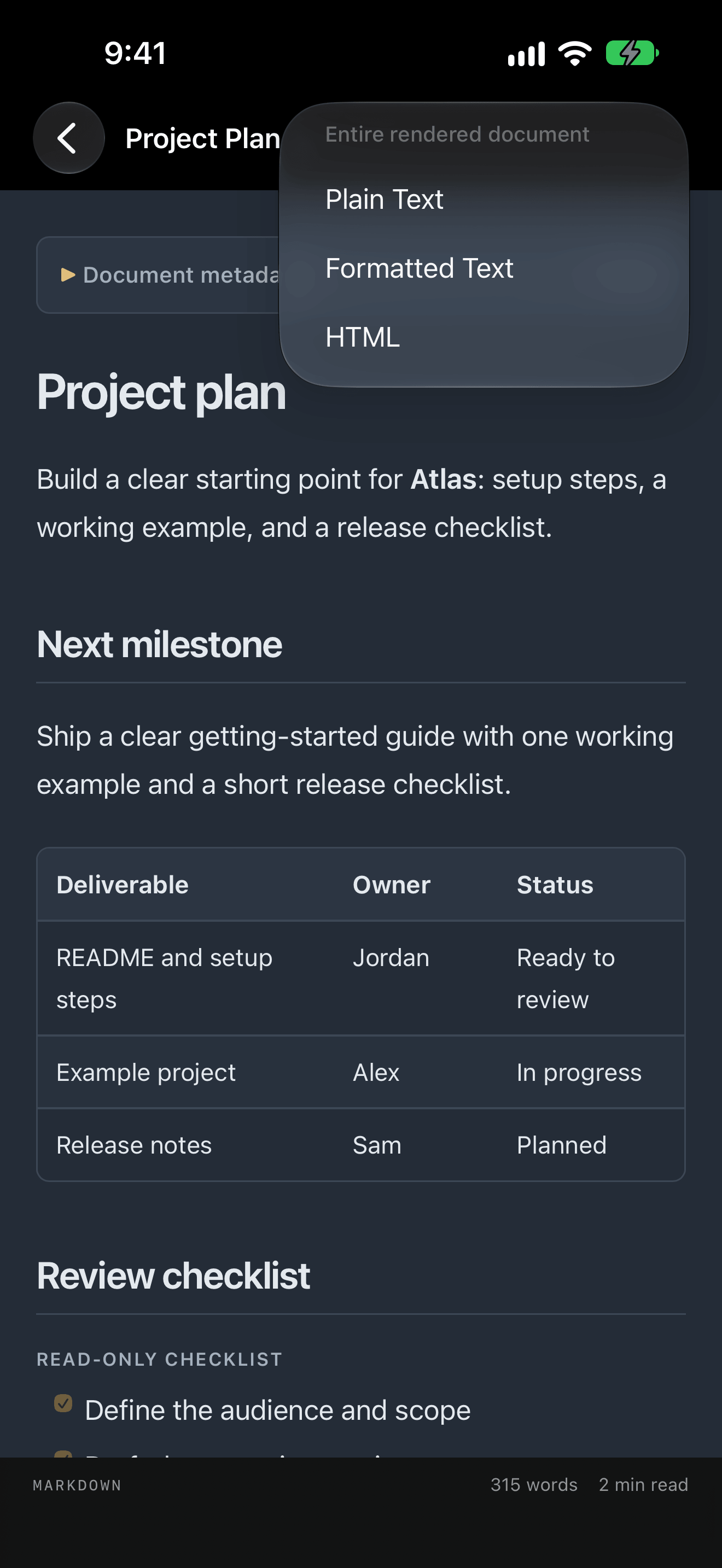
Open Copy Document in the reader toolbar. On Mac, the same menu is available under Edit. Choose Plain Text for readable text, Formatted Text for pasting into apps that support formatting, or HTML to copy the rendered document markup as text. All three choices copy the rendered document, even while Source is visible. Images are represented by their alt descriptions rather than image bytes or file locations. How formatted content appears after pasting depends on the receiving app.
The normal Copy action still copies selected text. On Mac, selected text also has plain, formatted, and HTML copy choices in its context menu. iPhone and iPad keep their standard selection Copy action. Hover over a code block on Mac, or use its visible Copy button on a touch device, to copy the code. Code line numbers are for reading and are not added to copied code.
Recent Files and privacy
The Recent Files section remains in the sidebar while a document is open and shows up to six recent entries. Open the sidebar when it is hidden by the screen layout, then choose an entry to return to that document.
Choose Browse Recents to see the saved history as a grid and search it by filename or file location. The app keeps up to 50 recent-file references. Cards show document icons rather than cached document previews. File Location shows where an entry points; opening a moved or unavailable file may require choosing it again.
Use the eye button to hide the recent-file list in the sidebar. Hiding the list does not clear history or stop new entries from being saved. On Mac, File > Open Recent remains available. To show the list again, select the eye button in the Recent Files header or turn on Show Recent Files in Sidebar in Settings.
To stop keeping history, open Settings and turn off Remember recent files. This clears Rule Markdown's saved recent filenames, file locations, and file-access bookmarks, clears its File > Open Recent list on Mac, and stops recording new entries. Turning the setting back on starts remembering files you open afterward; it does not recover the cleared history.
Choose Clear Recent Files in Settings to empty the current list without changing whether future files are remembered. Neither clearing the list nor turning off history deletes your documents or erases separate histories kept by Files, other apps, or the operating system. Already opened documents retain their existing permissions until you close them. Folder permissions are managed separately in Settings > File Access.
Allow local images and linked notes
Open Settings > File Access and choose Add Folder…, then select the folder containing your notes and assets. The app can load supported local images and follow wiki links inside that allowed folder. Select a parent folder if the notes and images are in different subfolders.
When an image needs access to its folder, use its Choose Folder… action and select the containing folder. Granting access cannot repair an incorrect image path, download a missing file, or make an unsupported image format load.
Remote images are blocked. Local images must use a relative path and a supported format: PNG, JPEG, GIF, or WebP. Images larger than 12 MiB or with unusually large dimensions are not loaded. Quick Look previews do not inherit the full app's folder permissions, so some local images may be unavailable there.
File Access lists the names and locations of available remembered folders. Choose Forget Access beside a folder to remove that saved permission. A temporarily unavailable permission is retained rather than silently erased. The app shows a count of these permissions: reconnect the drive and reopen the app, or use Forget All Folder Access to remove all saved folder grants. Forgetting folder access does not close documents already open. Images and linked notes in that folder may require you to allow the folder again.
If a file will not open
Rule Markdown accepts .md, .markdown, .mdown, .mkd, and .mdx text files up to 8 MiB. Save the file as UTF-8, or UTF-16 with a byte-order mark. MDX is displayed as Markdown; its scripts and components do not run.
If a recent file has moved or its permission expired, use Open Markdown to choose it again. For a cloud document, confirm it is available in Files or Finder and has finished downloading.
If content looks out of date, save it in your editor and choose Reload Document in Reading Options. On Mac, Command-R also reloads. Reload rereads the saved file and refreshes its preview. Automatic updates depend on the file and document provider. If the preview stops unexpectedly, close and reopen the document.
Sharing and file icons
Sharing sends your original file. It does not install Rule Markdown on the recipient's device or guarantee a particular file icon. The receiving device chooses its icon and opening options from its own apps and settings.
Rule Markdown leaves source files unchanged. Task boxes show their saved state and cannot be checked off in the reader. On Mac, use Reading Options > Print / Save PDF to create a formatted copy.
Questions about .md and AI files
What does .md mean?
The .md extension identifies a Markdown file: plain text with marks such as # for a heading and dashes for a list. You can read the source in a text editor. A Markdown reader displays the supported formatting as a page. Show Source in Rule Markdown lets you switch back to the original text.
Can I read a plan or README written by an AI agent?
Yes, when it is saved as a supported Markdown text file. Open the saved file through Finder on Mac or the folder button in Rule Markdown on iPhone and iPad. Plans, READMEs, and saved working notes use the same opening steps and file limits as other Markdown documents. Rule Markdown does not import an AI account’s chat history or generate a response.
What is an AGENTS.md file?
AGENTS.md is a convention for Markdown files that give coding agents project instructions, such as how to build, test, or work in a repository. It is not universal agent memory, and different tools decide whether and how to use it. Rule Markdown can display a supported AGENTS.md text file so you can review its contents; opening it does not apply those instructions to an agent.
Does opening an AI document run its instructions?
No. Rule Markdown is a reader. It does not connect to an AI service, run an agent, or execute instructions, code blocks, or MDX components from the document. Your original file stays unchanged. If you choose to open a web or email link in the main app, it opens the appropriate external app as a separate action.
Contact Rule Mobile
Rule Markdown is planned as a free app, with no subscription or in-app purchase. It is awaiting App Store approval. Settings includes a Made by Rule Mobile link to explore other Rule Mobile apps; following it opens the external website. Rule Markdown does not provide a cloud-sync service.
Email info@rulemobile.com with the subject "Rule Markdown support", or use https://rulemobile.com/contact. Include your device model, operating-system version, app version, and the steps that led to the problem. A small example document can help, but remove private content before sending it. Please do not send passwords or access tokens.
For privacy questions, see the Rule Markdown Privacy Policy or email info@rulemobile.com with the subject "Rule Markdown privacy". Website contact submissions are covered by https://rulemobile.com/privacy.