

Allegro · GenCAD · PADS · Gerber
Native Mac PCB Viewer
Inspect source copper, components and nets.
Review supported board files locally on macOS.
$49.99 USD planned US launch price · one-time purchase App Store release in preparation
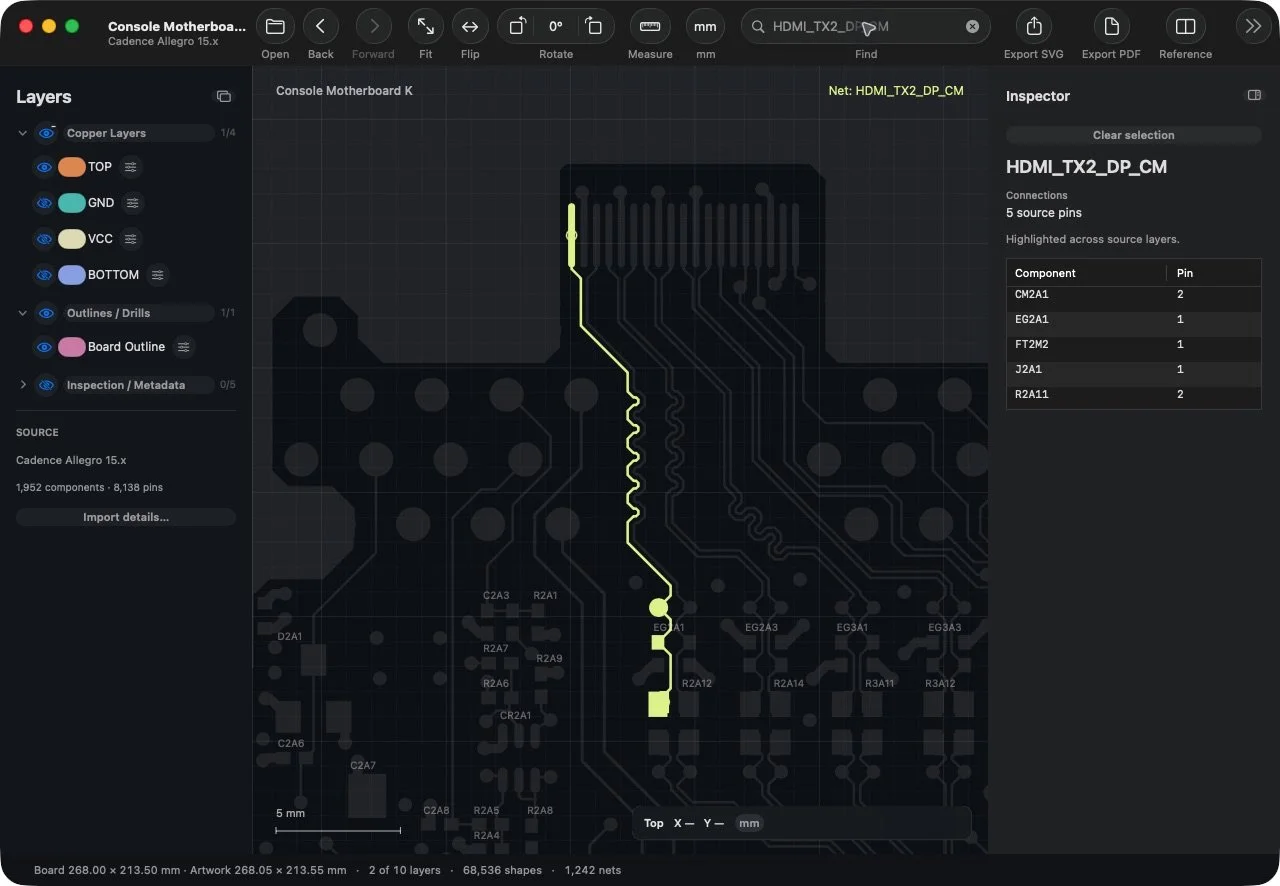
Actual CopperScope interface. Console Motherboard K · HDMI port region.
For engineering work
One workspace.
Three practical workflows.
Hardware review
Inspect imported routing, pads and layer geometry. Keep a schematic PDF beside the board. Export a focused diagram for the next review.
Board repair
Find a connector or component. Follow its imported net and pin list. Flip or rotate the view to match the board on your bench.
Engineering labs
Compare supported projects in native document tabs. Inspect footprints and source connections. Share vector diagrams with classmates and colleagues.
From source data to an answer
Inspect the port.
Follow its connections.
Start at the connector. Check the nearby pads and source routing. Select an imported net to see its connected pins. Keep the layer controls and Inspector within reach.
01 · Inspect the port
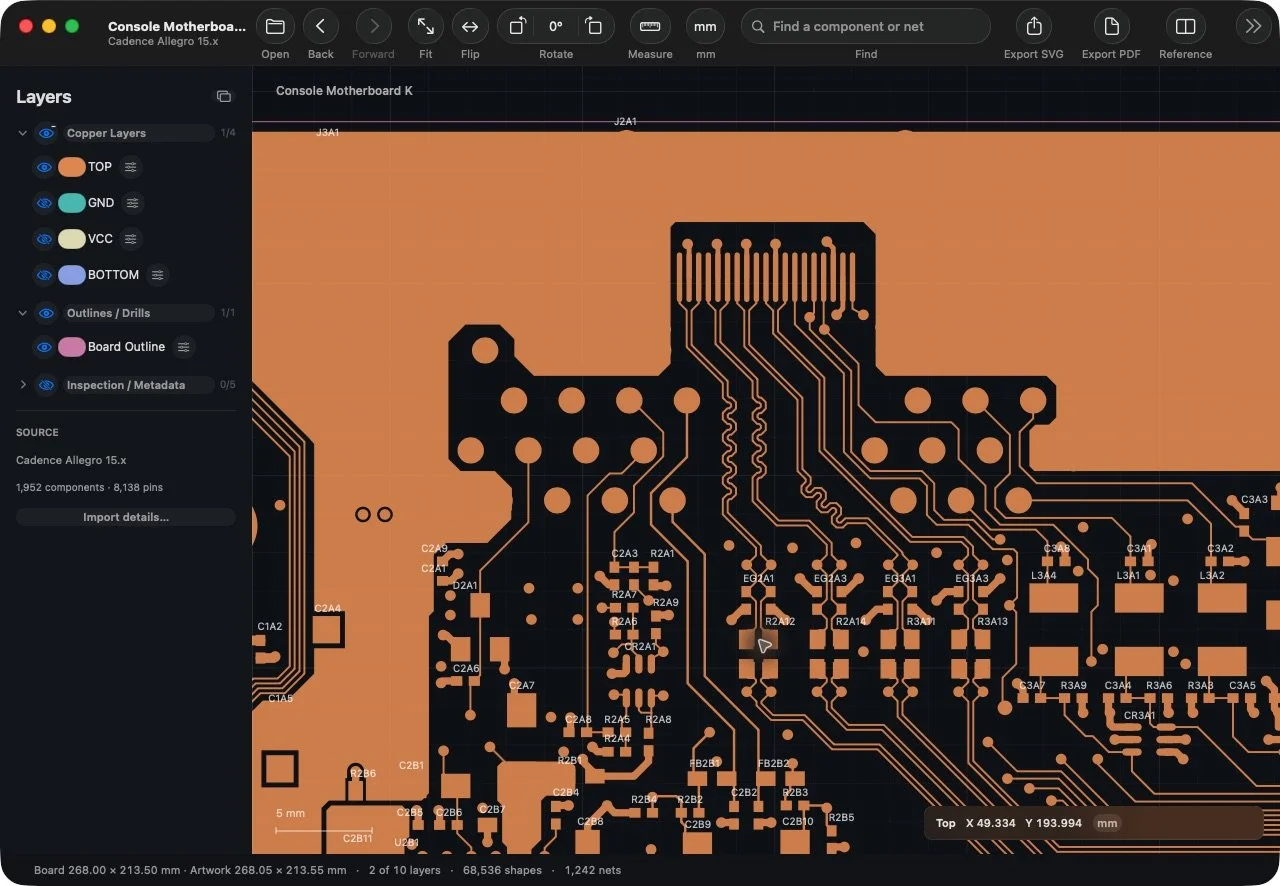
See what surrounds the port.
Copper · pads · layer controlsInspect the source geometry around a connector. Show a layer, adjust its opacity or solo it to reduce visual noise.
02 · Follow the net
Follow the signal beyond the port.
5 source pins in this exampleHighlight an imported electrical net. Dim the surrounding board and inspect the source connections in one place.
03 · Find the part
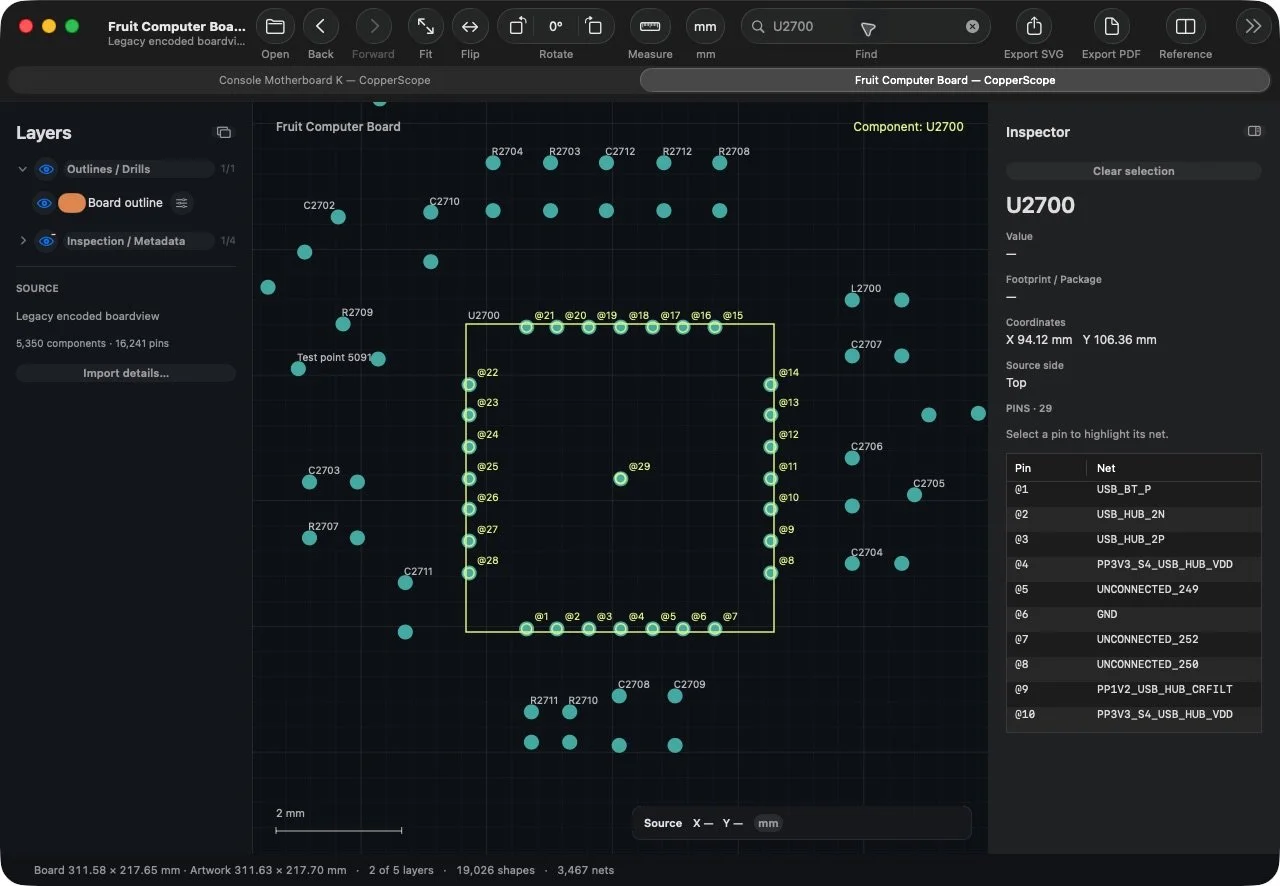
Find the part. Read its connections.
Fruit Computer Board · U2700Search a reference or net with Command-F. Read the metadata the source provides. Contact-only boardviews show contacts without inventing missing copper or package data.
04 · Turn the view
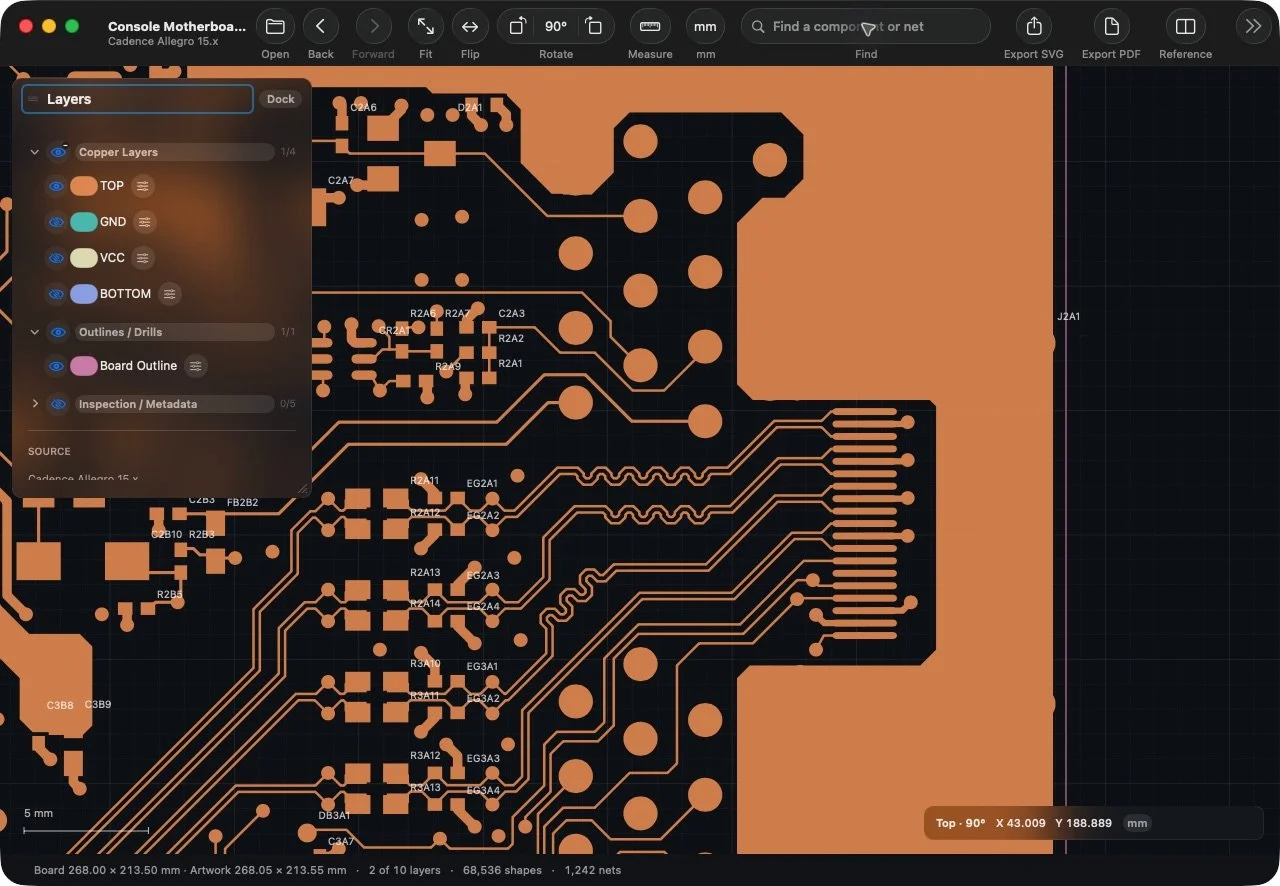
Turn the board. Stay oriented.
Rotation · readable labelsRotate your inspection view and keep references readable. Flip to the opposite face. Dock the Layers panel or let it float over the canvas.
Built around your Mac
A Mac workflow.
At the engineering bench.
Use the document and navigation controls you already know. Open projects in tabs. Pan with your trackpad. Keep a schematic PDF beside the board.
Finder Quick Look
Select a supported board or artwork file and press Space. Preview it before opening a document.
Layers under control
Use grouped visibility, per-layer colors and opacity, solo mode and resizable panels.
Measure and export
Snap measurements to imported geometry. Switch between mm, mils and inches. Export source artwork as SVG or PDF.
Reference beside the board
Open a schematic PDF alongside the canvas. Compare the source information without switching apps.
From Finder to a saved diagram
Preview the file.
Keep the scale.
Check a supported board in Finder. Export its artwork from CopperScope. These captures use LinkProbe A, our original two-layer inspection example.
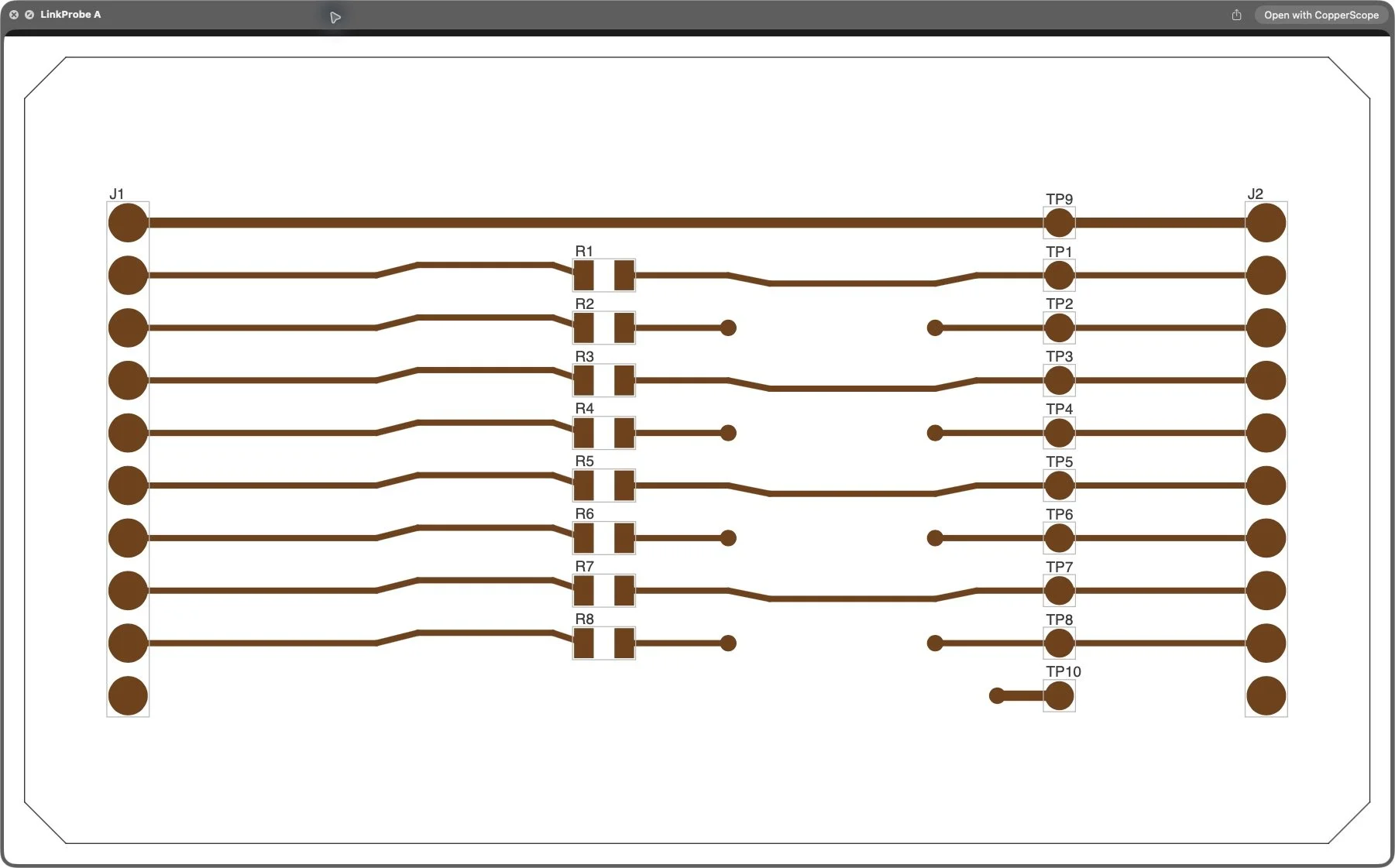
Finder Quick Look
A board preview. One Spacebar.
Select a supported file and press Space. CopperScope Preview shows its available source geometry without opening a document window.
Enable Finder previews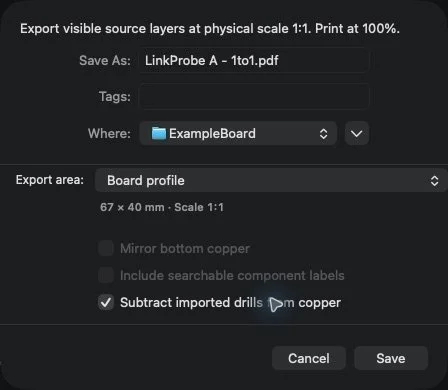
SVG and PDF export
Source dimensions. Vector output.
This example has a 65 × 38 mm board. The PDF page measures 67 × 40 mm, including the 1 mm border. The export keeps physical scale 1:1 and subtracts the 33 declared drill hits from the copper.
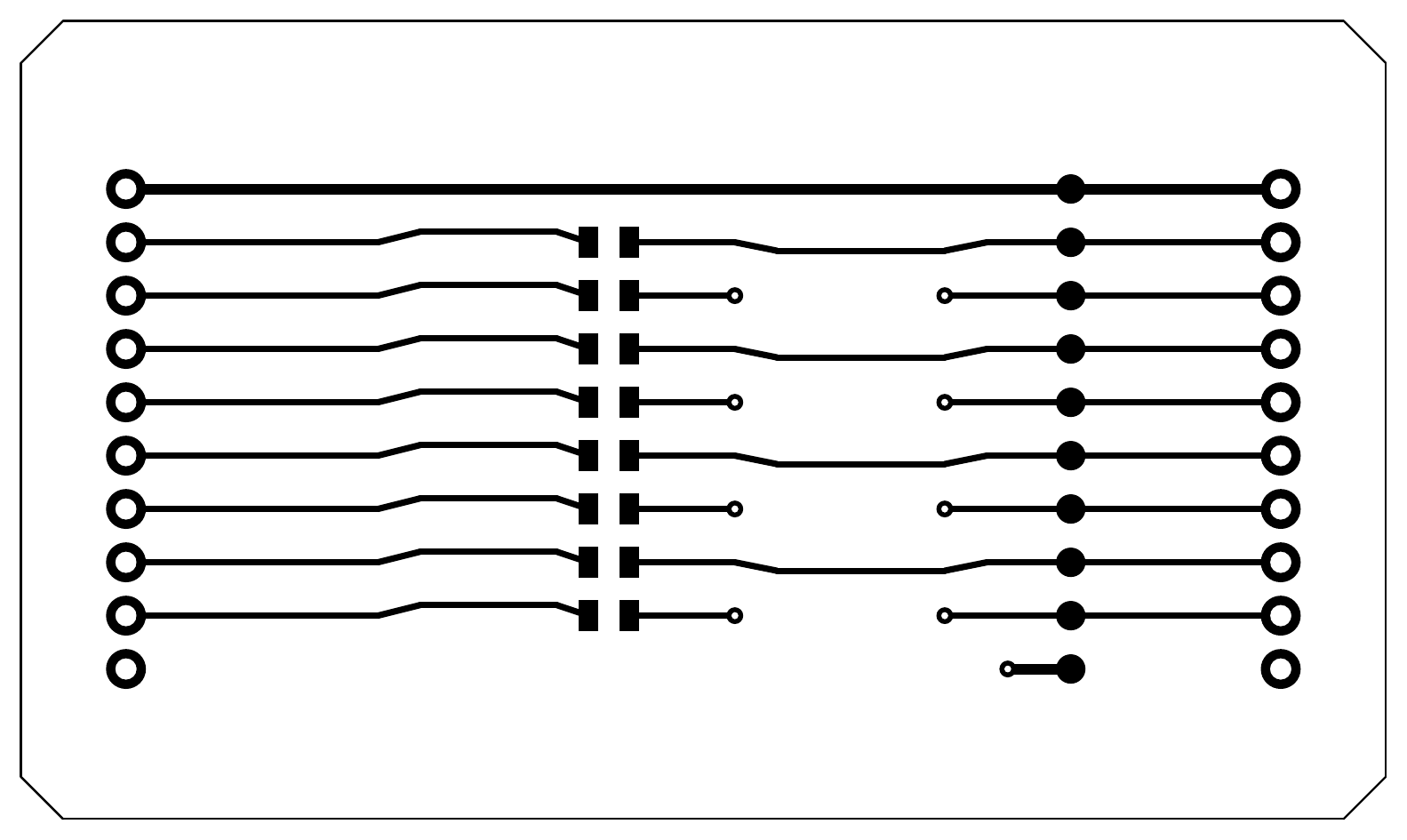
Actual exported PDF · 67 × 40 mm page
Check compatibility before purchase
Allegro, GenCAD and Gerber.
Ready for inspection on Mac.
CopperScope reads the file contents to identify the format. The extension alone does not determine compatibility.
Board files
- Cadence Allegro — qualified binary layouts from 15.x, 16.3, 16.5, 16.6 and 17.2.
- PADS binary and GenCAD 1.4 — available source geometry, components and connections.
- Legacy boardviews — supported BRD, CAD and PCB variants, including contact-only files.
- XZZ — supported boardview records and calibrated reference workflows.
Artwork and output
- Gerber and NC drill — supported RS-274X/X2 artwork and Excellon drill records.
- PDF references — read schematics beside the canvas.
- SVG and PDF export — physical scale for sources with established units.
- CSV export — available component metadata and source placements.
Available geometry, component fields, pin identifiers and units depend on the source. Contact-only boardviews do not contain copper routing. Import Details reports source-specific findings. XZZ physical reference exports require an established or user-supplied calibration.
For Altium Designer workflows
View Altium Gerber exports on your Mac.
Need an Altium viewer for macOS? CopperScope opens supported Gerber and ASCII NC drill exports from Altium Designer. Inspect the manufacturing artwork in the same native workspace.
Direct Altium .PcbDoc import is not supported. Gerber artwork is a layer image, not the editable PCB design database. Component, pin and net attributes depend on the export and supported source records.
- Export the artwork.In Altium Designer, use File → Fabrication Outputs → Gerber Files or Gerber X2 Files.
- Export ASCII NC drill data.Use the ASCII drill output. Match the Gerber units, precision and origin.
- Inspect the registered layers.Open the matching export set in CopperScope. Check Import Details for source-specific findings.
Planned US launch price
A focused tool.
A one-time purchase.
$49.99USD
No subscription. App Store release in preparation. The final price and local currency appear on the App Store.
- Native macOS app for Apple silicon and Intel
- Local board inspection without account sign-in
- Component search and source net highlighting
- Finder previews and vector exports
- Bundled help and privacy information
Requires macOS 13 or later. Native on Apple silicon and Intel.
Before you buy
Clear answers.
For your next project.
Will CopperScope open every .brd, .cad or .pcb file?
These extensions cover several unrelated formats. CopperScope identifies the file contents and opens qualified variants. Check the compatibility guide for supported families and source-specific limits.
Can I use CopperScope with Altium Designer?
Yes, for supported Gerber and ASCII NC drill exports. Direct .PcbDoc import is not supported. Use the Altium export workflow above to inspect registered manufacturing artwork on your Mac.
Does my board data leave the Mac?
CopperScope parses and renders board files locally. The app has no board uploads, account sign-in or telemetry. You choose where to save exports and what to send in a support email. Read the app privacy policy for details.
Can I print exported artwork at physical scale?
SVG and PDF export preserves 1:1 scale for sources with established units. Print the exact-size PDF at 100%. Scaled documentation prints include a scale reference. XZZ physical reference exports require established or user-supplied calibration. See the export guide.
Does CopperScope edit the PCB design?
CopperScope inspects imported board data and exports reference artwork. Use your PCB design application to author or modify the design.
What Mac do I need?
CopperScope requires macOS 13 or later. The app includes native Apple silicon and Intel binaries.